
How to Perform a Perfect Mic Test
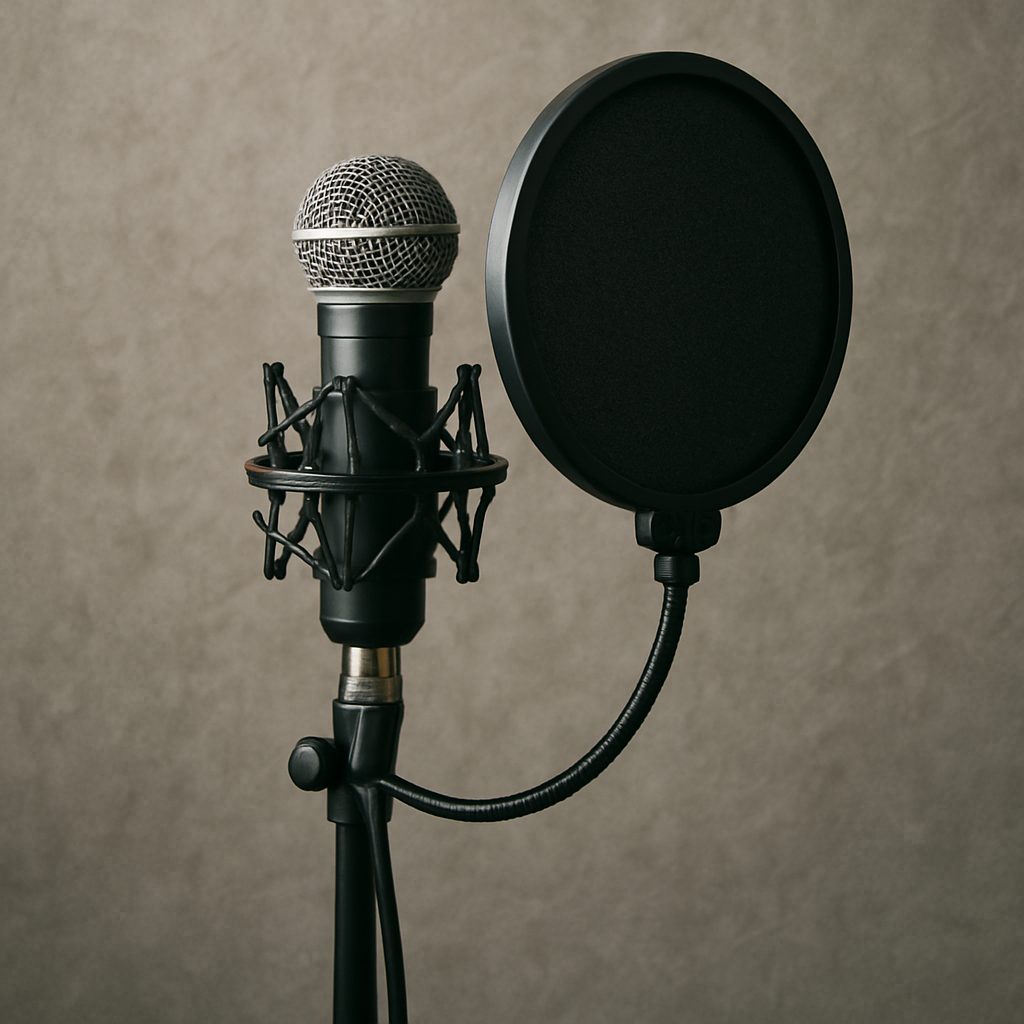
Ensuring your microphone is working perfectly is crucial for clear communication, especially in today’s digital world. Whether you’re preparing for a virtual meeting, recording a podcast, or gaming with friends, a proper mic test can make all the difference. Here’s a step-by-step guide on how to perform a perfect microphone test.
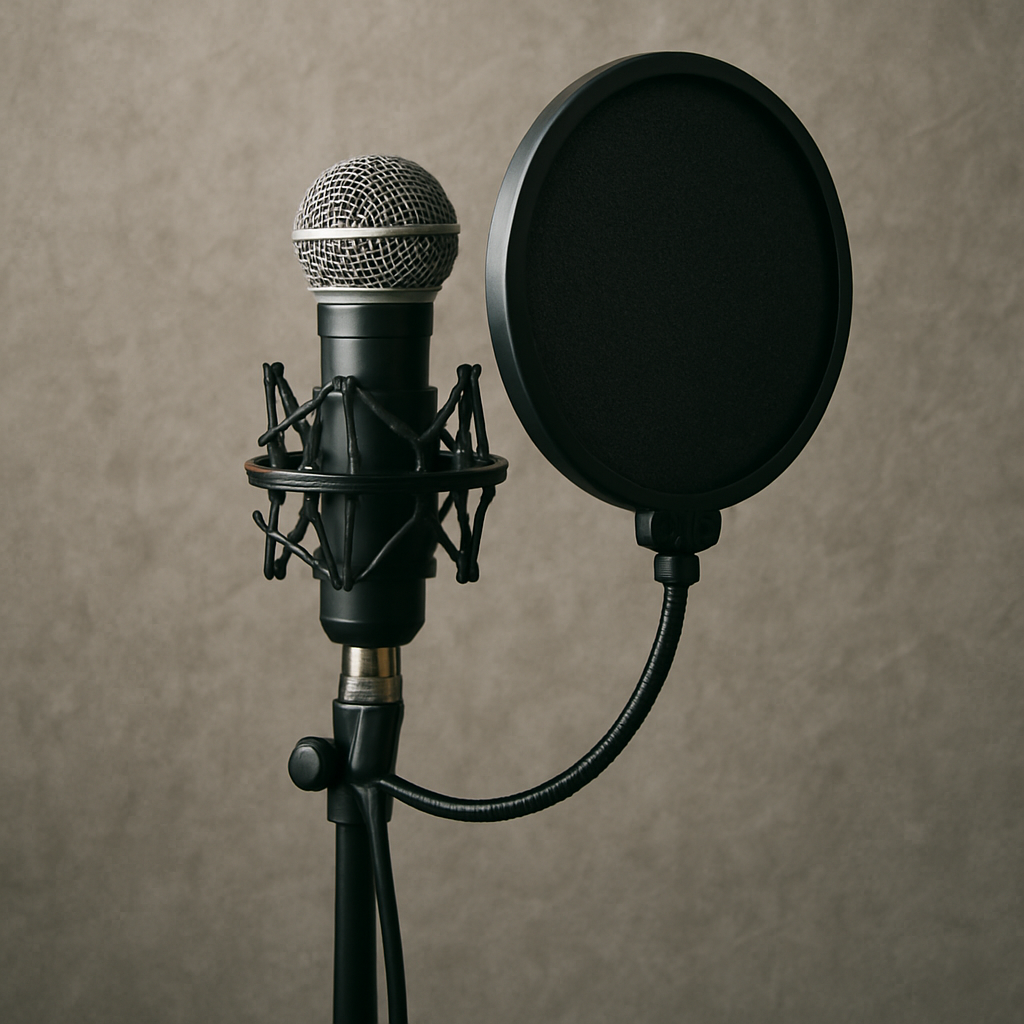
Before diving into the test, familiarize yourself with your microphone setup. Whether you’re using a built-in laptop mic, an external USB mic, or a high-end studio microphone, understanding its features and settings is essential.
How to Test Mic on a PC
Windows PC users can easily check their microphone settings. Follow these steps:
- Open Settings: Go to the Start menu and select Settings.
- Sound Settings: Click on System, then Sound.
- Input Devices: Under the Input section, choose your microphone from the dropdown menu.
- Test Your Microphone: Speak into the mic, and you should see the sound level bar moving. If it doesn’t, make sure the mic is not muted and is set as the default device.
Testing Your Mic in Teams
If you use Microsoft Teams for meetings, testing your mic is simple:
- Open Teams: Launch the Microsoft Teams application.
- Settings: Click on your profile picture and go to Settings.
- Devices: Under the Devices section, select your microphone and perform a test call.
Online Mic Test Tools
For quick checks, online tools can be very handy. Websites like “probar microfono online” allow you to test your microphone’s functionality directly through your browser. Simply follow the on-screen instructions to start your mic test.
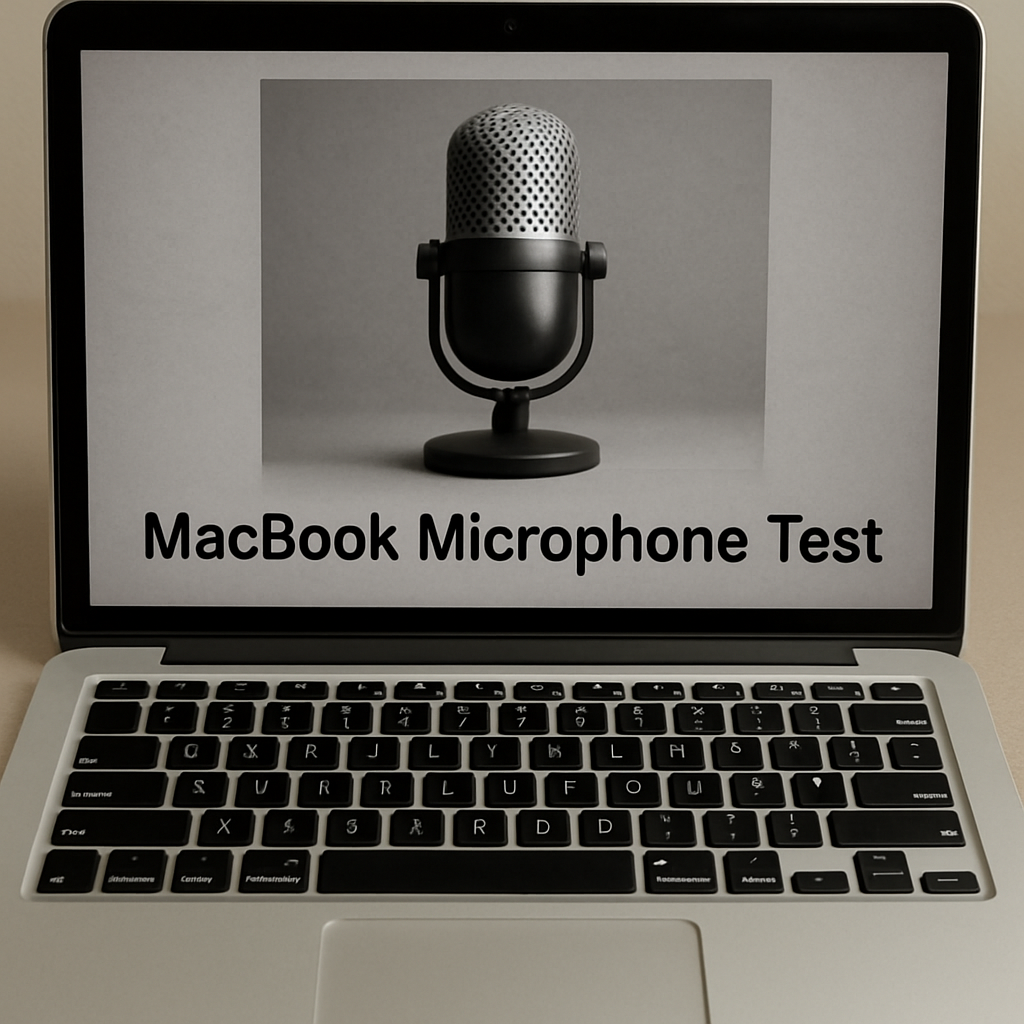
Mac Users: Mic Test on MacBook
Mac users can test their microphone by:
- Open System Preferences: Click on the Apple menu and select System Preferences.
- Sound: Go to the Sound section and click on the Input tab.
- Select Microphone: Choose your mic from the list and speak into it. The input level should rise with your voice.
Testing Mic Quality
To ensure not just functionality but also quality, record a short audio clip using any recording software. Playback the recording to evaluate the clarity and volume. Make adjustments as necessary by altering the mic position or settings.
Troubleshooting Common Issues
If your mic isn’t working, check:
- Connections: Ensure all cables are securely plugged in.
- Drivers: Update your audio drivers if necessary.
- Permissions: Some applications require permission to access your microphone.
By following these steps, you’ll be well-prepared to ensure your microphone is in top shape. Regular testing can prevent last-minute hiccups and ensure seamless audio performance for all your needs. Whether it’s a professional meeting or casual chat, a perfect mic test guarantees you’re heard loud and clear.